Introduction
Welcome to the official Obsidian MOC Plugin documentation.
What is it?
The Obsidian MOC Plugin is a smart Map of Content generator for Obsidian. It automatically organizes your notes into structured, navigable maps so you can explore your knowledge graph with ease.
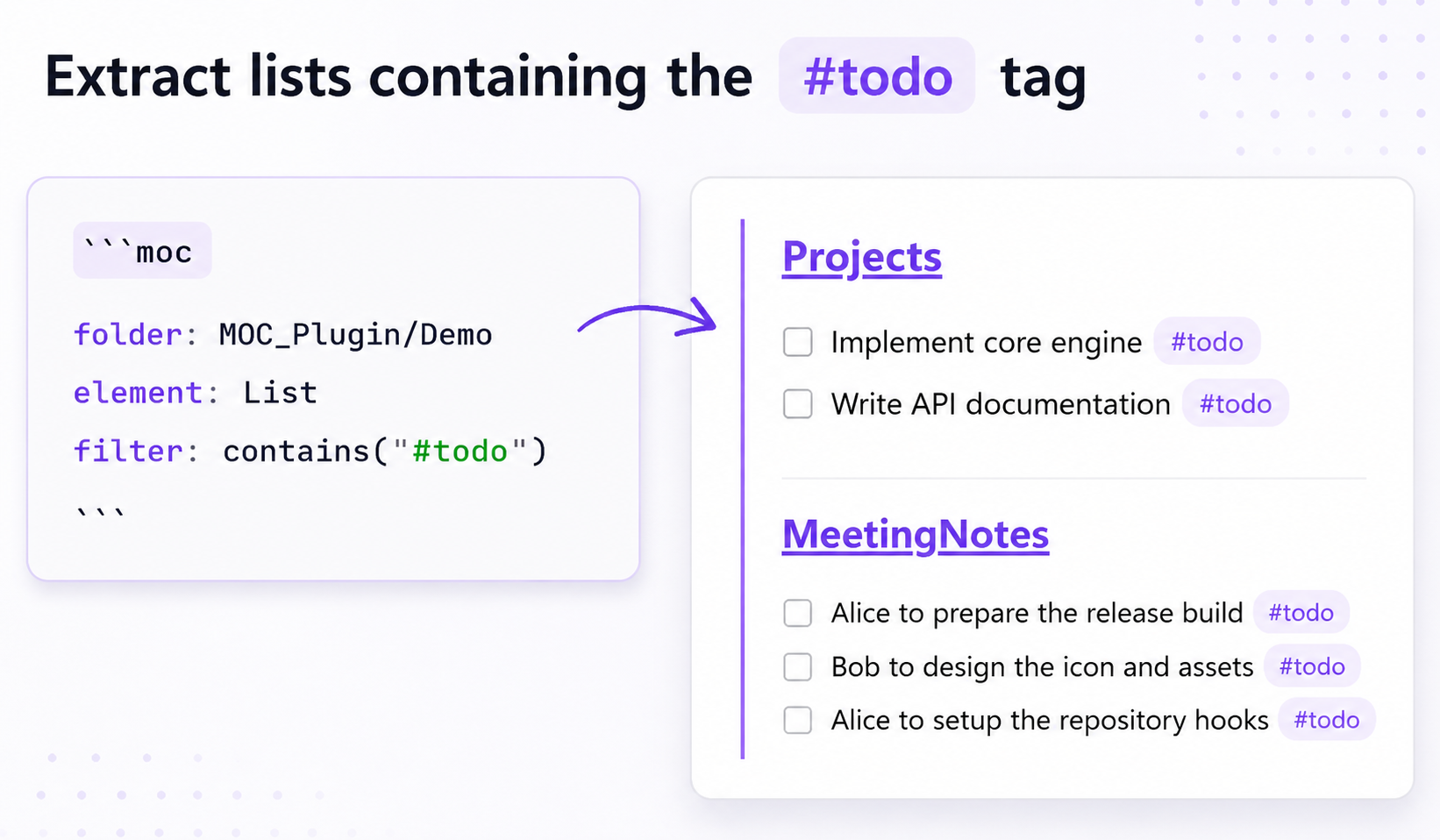
Features
- Interactive MOC Creation Wizard: Build complex query blocks visually without manually writing YAML.
- Dynamic Element Extraction: Extract specific elements like Lists, Tasks, Headings, Paragraphs, or Blockquotes from markdown notes.
- Advanced Filtering: Match elements by exact word, text patterns, tags, task completion status, regular expressions, or frontmatter properties — with full boolean logic (
AND,OR,NOT). - Property Comparison Operators: Filter by frontmatter values using
==,!=,>,<,>=,<=for numeric and date comparisons. - Hierarchical Grouping: Group matching elements dynamically by folder, creation date (cday), modification date (mday), tag, or any frontmatter property.
- Sorting & Limiting: Sort scanned files by filename, creation date, or modification date, and limit the maximum number of processed notes.
- Offset / Pagination: Skip a number of files at the start of the result set to paginate large result sets together with
limit. - Show Count: Append result count summaries to MOC blocks and per-group headings.
- Exclude Options: Skip specific folders or files from results using
excludeFolderandexcludeFile. - Custom Output Templates: Format each matched element using a reusable template note (referenced by name via the
templateoption) with{{content}},{{file}},{{path}}, and{{link}}placeholders. - Reusable Find & Replace Rules: Define text transformations globally in plugin settings and apply them singly or in sequential chains to clean up extracted block text.
- Decoupled Block & Note Separators: Separately control separators (e.g. blank lines, horizontal rules) between blocks from the same note and different note sections.
- Live Auto-refresh: MOC blocks automatically re-render when files in the watched folder are created, modified, or deleted — no manual refresh needed.
- Copy as Markdown: Copy the rendered MOC output to clipboard without modifying the note.
- Bake to Markdown: Instantly convert dynamic blocks into static markdown notes directly inside the editor.
- Create Showcase: Generate a ready-to-explore demo folder covering every feature with a single command.
Installation
From the Community Plugin browser
- Open Obsidian and go to Settings → Community plugins.
- Select Browse and search for
Maps of Content. - Select Install, then Enable.
Manual installation
- Download
main.js,manifest.json, andstyles.cssfrom the latest release. - Copy the files to your vault's plugin directory:
<Vault>/.obsidian/plugins/obsidian-MOC-plugin/. - Reload Obsidian and enable the plugin under Settings → Community plugins.
Getting Started
The easiest way to generate your first Map of Content is to use the interactive wizard:
- Click the Create map of content block icon (a list icon) in the ribbon on the left side of Obsidian, or open the command palette (
Ctrl/Cmd + P) and run the command Create map of content block. - Configure your search directory, target element, and filters in the modal.
- Click Insert block to generate the dynamic
moccode block at your current cursor position.
Alternatively, run Create showcase from the Command Palette to generate an example folder with sample notes and pre-built MOC blocks covering every feature — a great way to explore the plugin without writing any configuration.