Introduction
Welcome to the official Obsidian MOC Plugin documentation.
What is it?
The Obsidian MOC Plugin is a smart Map of Content generator for Obsidian. It automatically organizes your notes into structured, navigable maps so you can explore your knowledge graph with ease.
Features
- Interactive MOC Creation Wizard: Build complex query blocks visually without manually writing YAML.
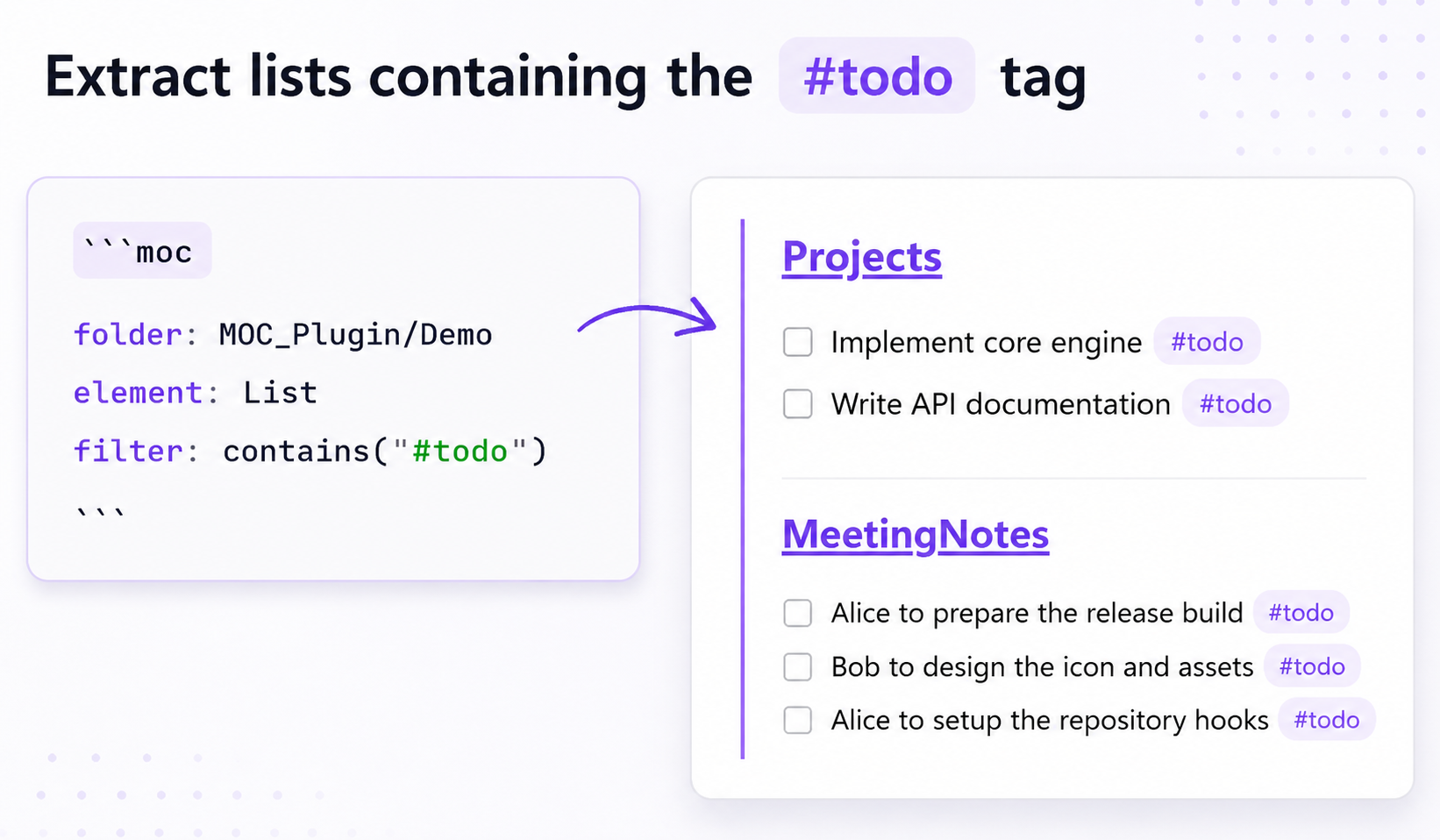
- Dynamic Element Extraction: Extract specific elements like Lists, Tasks, Headings, Paragraphs, or Blockquotes from markdown notes.
- Advanced Filtering: Match elements by exact word, text patterns, tags, task completion status, regular expressions, or frontmatter properties.
- Hierarchical Grouping: Group matching elements dynamically by folder, creation date (cday), modification date (mday), or tag.
- Sorting & Limiting: Sort scanned files by filename, creation date, or modification date, and limit the maximum number of processed notes.
- Reusable Find & Replace Rules: Define text transformations globally in plugin settings and apply them singly or in sequential chains to clean up extracted block text.
- Decoupled Block & Note Separators: Separately control separators (e.g. blank lines, horizontal rules) between blocks from the same note and different note sections.
- Bake to Markdown: Instantly convert dynamic blocks into static markdown notes directly inside the editor.
Installation
From the Community Plugin browser
- Open Obsidian and go to Settings → Community plugins.
- Select Browse and search for
Maps of Content. - Select Install, then Enable.
Manual installation
- Download
main.js,manifest.json, andstyles.cssfrom the latest release. - Copy the files to your vault's plugin directory:
<Vault>/.obsidian/plugins/obsidian-MOC-plugin/. - Reload Obsidian and enable the plugin under Settings → Community plugins.
Getting Started
The easiest way to generate your first Map of Content is to use the interactive wizard:
- Click the Create map of content block icon (a list icon) in the ribbon on the left side of Obsidian, or open the command palette (
Ctrl/Cmd + P) and run the command Create map of content block. - Configure your search directory, target element, and filters in the modal.
- Click Insert block to generate the dynamic
moccode block at your current cursor position.