Snapshot View
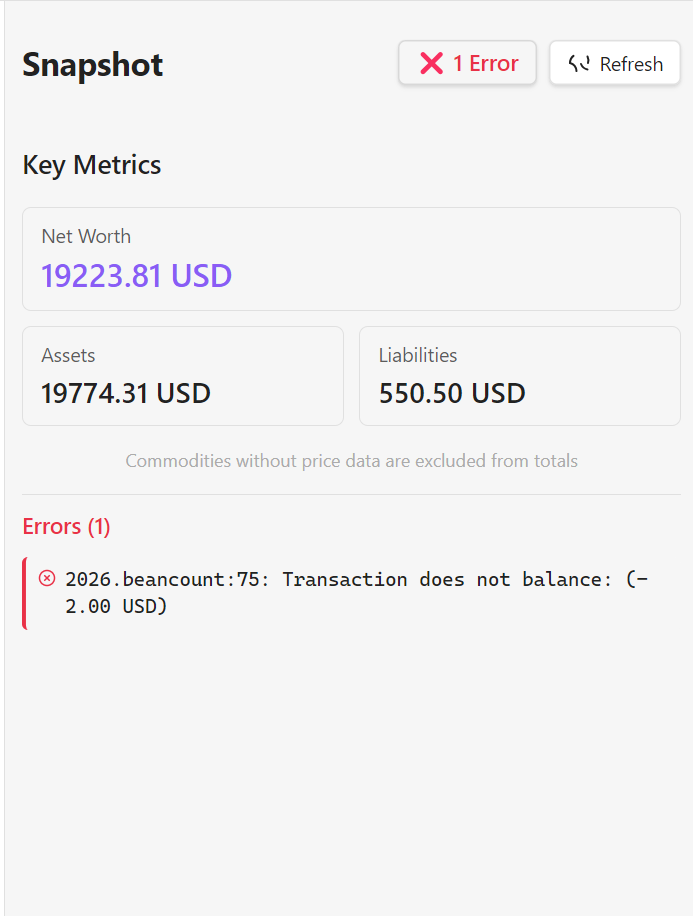
The Snapshot View is a persistent sidebar widget that gives you at-a-glance financial awareness while you work in your notes.
👁 Features
File Status Indicator
The status button at the top shows the health of your Beancount file:
- ✅ OK — File is valid, no errors detected.
- ❌ N Errors — Click to see a notification with the full error message list.
- Checking… — Validation is currently in progress.
Key Metrics
Displays three high-level financial indicators pulled directly from your ledger:
- Net Worth — Total position across all Assets and Liabilities accounts, converted to your Operating Currency.
- Assets — Total value of all Assets accounts in your Operating Currency.
- Liabilities — Total value of all Liabilities accounts. Positive numbers represent outstanding debt; negative numbers indicate a credit or overpayment.
All three values are rounded to 2 decimal places and shown in your configured Operating Currency.
Note: Commodities without price data are excluded from the totals. If you hold stocks or crypto without price directives, only the cash portion will be reflected.
Refresh Button
Reloads all KPI values, re-validates the Beancount file, and refreshes reconciliation status on demand.
🐛 Error Diagnostics
When the file status shows errors, an Errors tab below the KPI section lists each validation error individually, in <file>:<line>: <message> form.
Click any error to jump straight to its source: the plugin opens the relevant .beancount file (in a new tab) and scrolls the editor to the exact line, so you can fix it immediately without hunting for it manually.
✅ Reconciliation Tracking
Below the KPI section, a Reconciliation tab shows the health of all accounts configured with a reconciliation interval.
How It Works
For any account where you have set a reconcile: <days> metadata key on its open directive, the plugin tracks the date of the most recent balance assertion for that account. If the gap since the last balance assertion exceeds the configured interval — or if the account has never had a balance assertion — it is flagged as overdue.
What You See
- Summary row at the top: total overdue count and total up-to-date count.
- Per-account list below, each entry showing:
- ✅ Up to date — Last reconciled within the configured interval.
- ⚠️ Overdue — Last reconciliation was more than
<days>ago, with the overdue duration shown. - ⚠️ Never reconciled — No
balanceassertion has ever been recorded for this account.
Click any account row to open the dashboard's Transactions tab, filtered to that account and to the date range since its last successful balance directive (so you see exactly what's changed since you last reconciled). Ctrl/Cmd+click opens the Journal tab with the same filters instead. If the account has never been reconciled, the filter is left open-ended. See Inter-Tab Navigation for the full picture of how these connections work across the plugin.
Setting Up Reconciliation Intervals
You can configure the interval for any account in two ways:
- Via the Open Account modal (recommended): When opening a new account from the Accounts & Balances tab, fill in the optional "Reconciliation interval (days)" field. The plugin will add the
reconcilemetadata automatically. - Manually in your
.beancountfile: Add the metadata key directly to theopendirective:
2020-01-01 open Assets:Checking USD
  reconcile: 30
This tells the plugin to flag the account if it has not been reconciled within 30 days.
📅 Upcoming Transactions
The Upcoming tab — toggled against Key Metrics at the top of the Snapshot view — lets you define transactions that repeat automatically or fire once in the future, without leaving the sidebar.
How It Works
Each schedule is stored as an event "Recurring" directive in your events.beancount file — plain text, just like everything else in your ledger. Nothing is ever added to your ledger automatically: a schedule only produces a real transaction when you explicitly confirm it via the refresh flow below.
Adding a Schedule
Click the + button in the Upcoming tab to open the Add Scheduled Transaction modal:
- Frequency —
One-time,Weekly,Monthly,Quarterly, orYearly. - Start Date — the first (or only, for
One-time) occurrence. - Payee / Narration — optional, same as a regular transaction.
- Postings — add as many as you need. Leave one posting's amount blank to have Beancount auto-balance it, exactly like a manually-entered transaction.
Each row in the list shows the schedule's name, amount, frequency, and next due date, with an orange indicator when something is due.
Checking What's Due
Click the refresh icon to check for due occurrences. If a schedule has fallen behind by more than one cycle, every missed occurrence is surfaced at once — not just the next one — grouped under that schedule in a confirmation dialog. For each occurrence you choose one of:
- ✅ Insert — materialize it into the ledger and advance to the next occurrence.
- ⏭ Skip — dismiss this occurrence without adding it, and still advance past it.
- ⏸ Hold — do nothing; it stays due and you'll be asked again next time you refresh.
Note:
nextDateadvances as a single cursor, so a Hold on an earlier occurrence blocks later occurrences of the same schedule from being resolved in that batch — they're simply re-offered on your next refresh instead of being processed out of order.
Every transaction created this way is tagged with scheduled: "<name>" metadata, linking it back to the schedule that produced it. This also gives the plugin a way to detect and skip an accidental duplicate insert (e.g. if the confirmation dialog is submitted twice).
Editing & Deleting
Hover a schedule row to reveal ✏️ (edit) and ❌ (delete) icons. Editing reopens the same form pre-filled with the schedule's current details; deleting removes the event directive from events.beancount after a confirmation prompt.
💡 Usage Tips
When to Use
- Daily note-taking — Keep it open in the sidebar while journaling to quickly reference balances.
- Quick checks — Glance at net worth without opening the full dashboard.
- Context switching — Maintain financial awareness while working on other tasks.
- Reconciliation reminders — Use the Reconciliation tab as a checklist to know which accounts need a balance assertion before closing the month.
- Bill tracking — Set up recurring rent, subscriptions, and insurance payments once in the Upcoming tab, then just click Refresh whenever you're catching up on bookkeeping.
Placement
Access the Snapshot View via:
- Command Palette:
Ctrl/Cmd + P→ "Open Beancount Snapshot". - Right Sidebar: Drag and position the view anywhere in Obsidian's layout.